
The new authentication method on the Windows VPS is more secure and provides a better experience with the VPS, as you can access it in two different ways:
- Via browser.
- Via Remote Desktop.
This tutorial will cover how to access it via Browser.
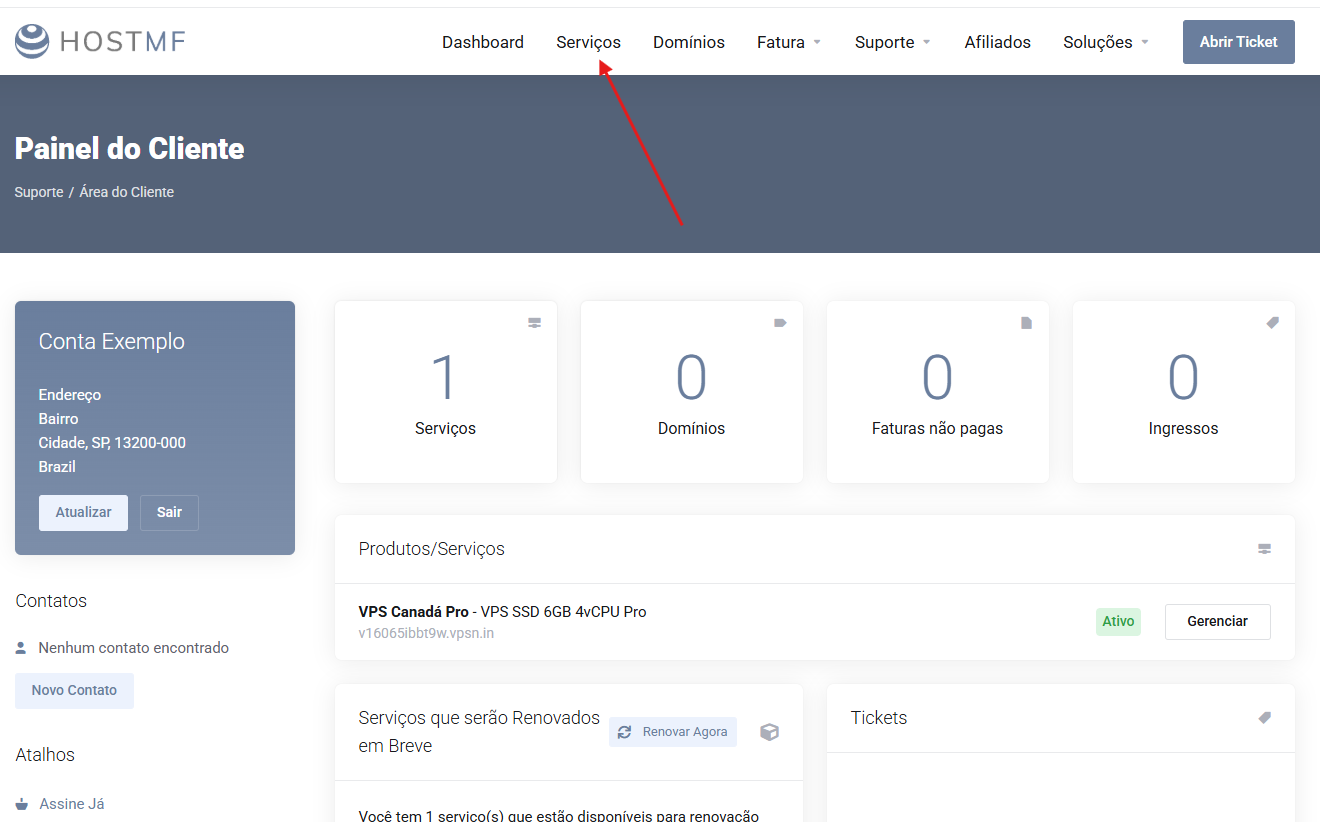
1. The first step is to access the client area.
- Client Area -> Services, as in the example below:
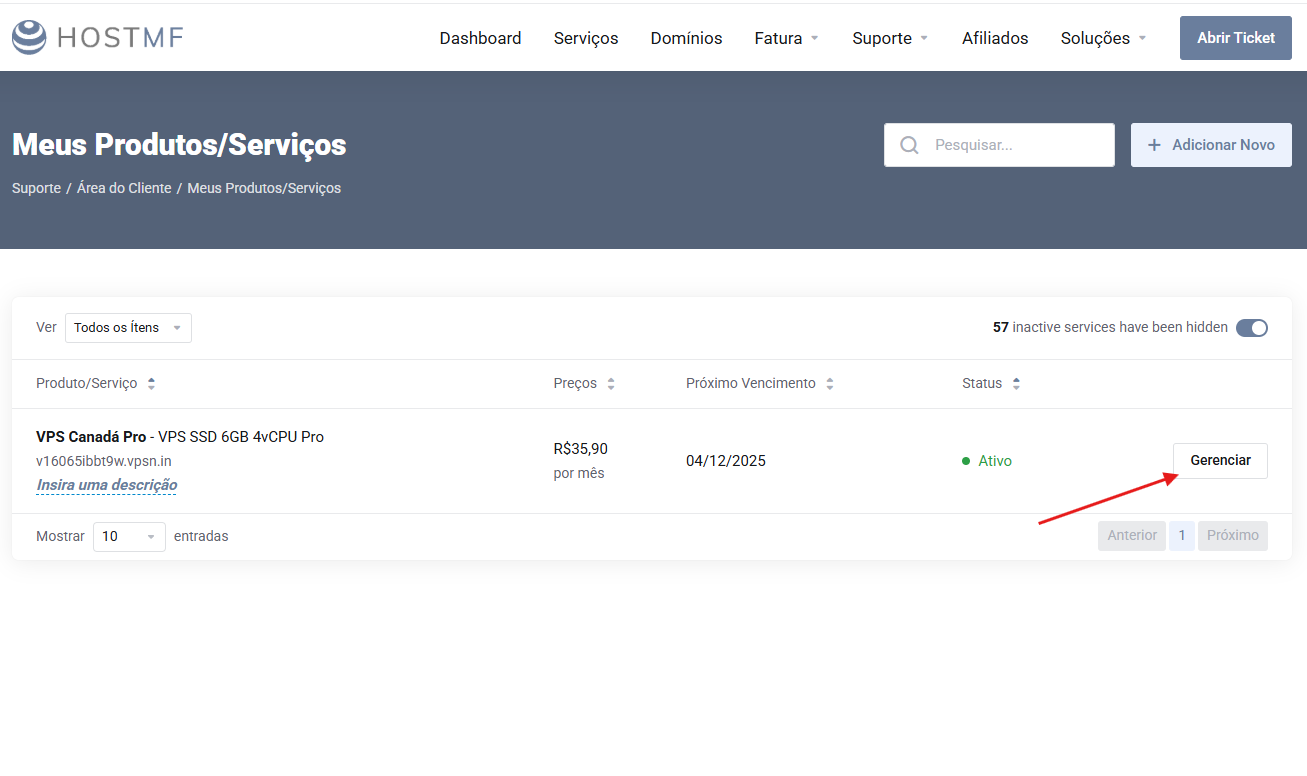
2. Locate the VPS plan you want to connect to and click "Manage".
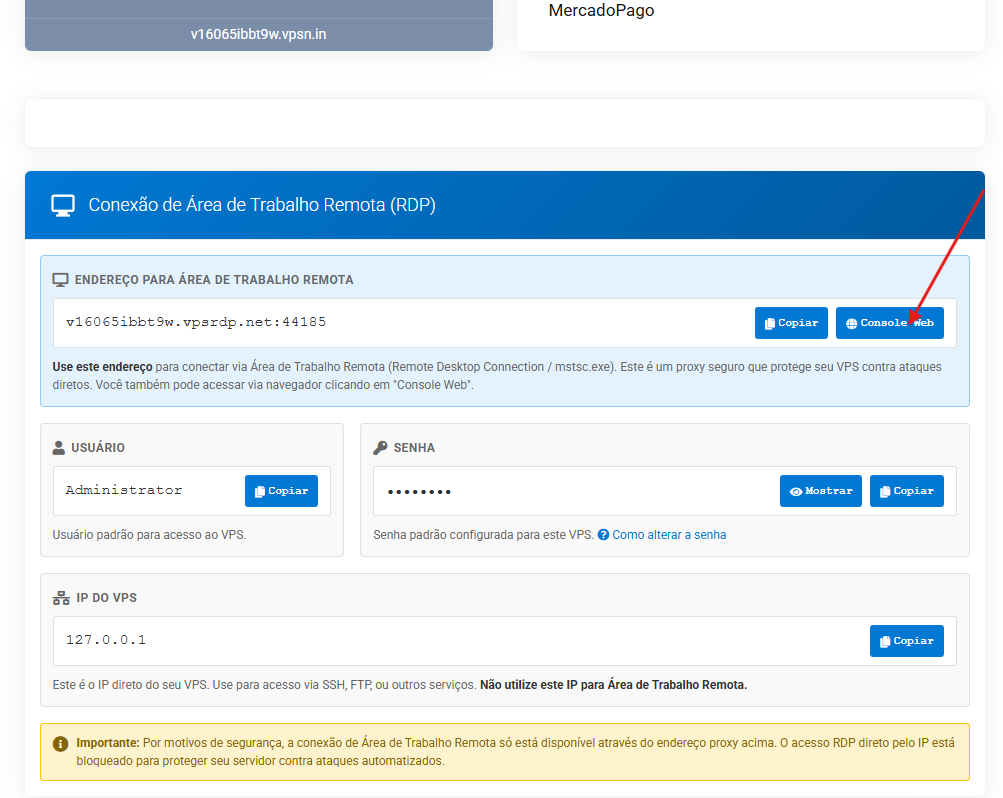
3. Click the "Web Console" button.
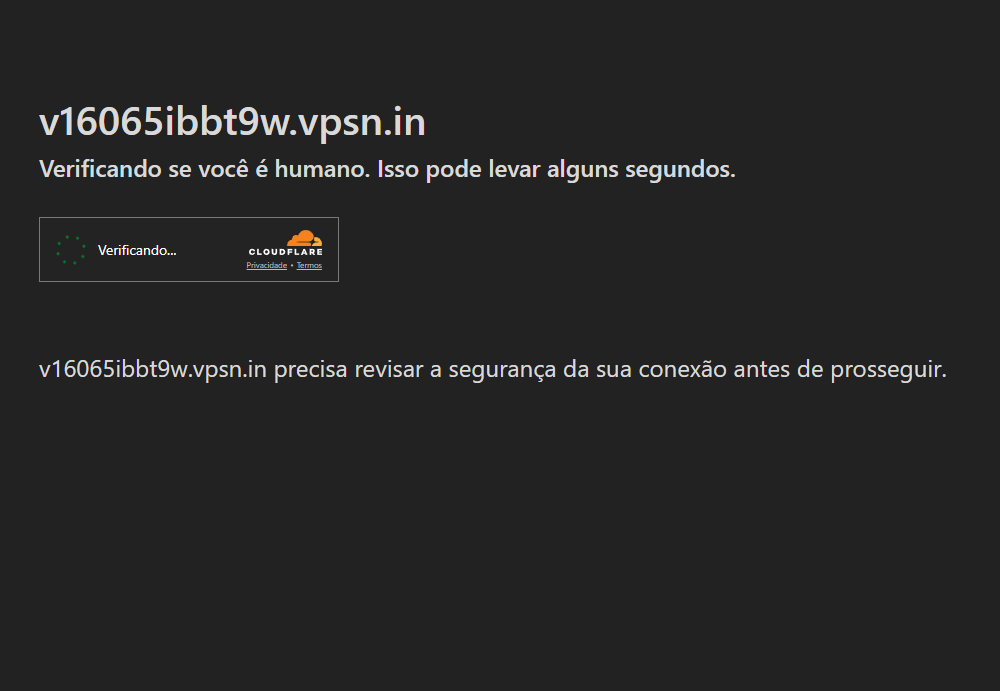
4. A new screen will open asking for captcha verification. Complete the verification and wait.
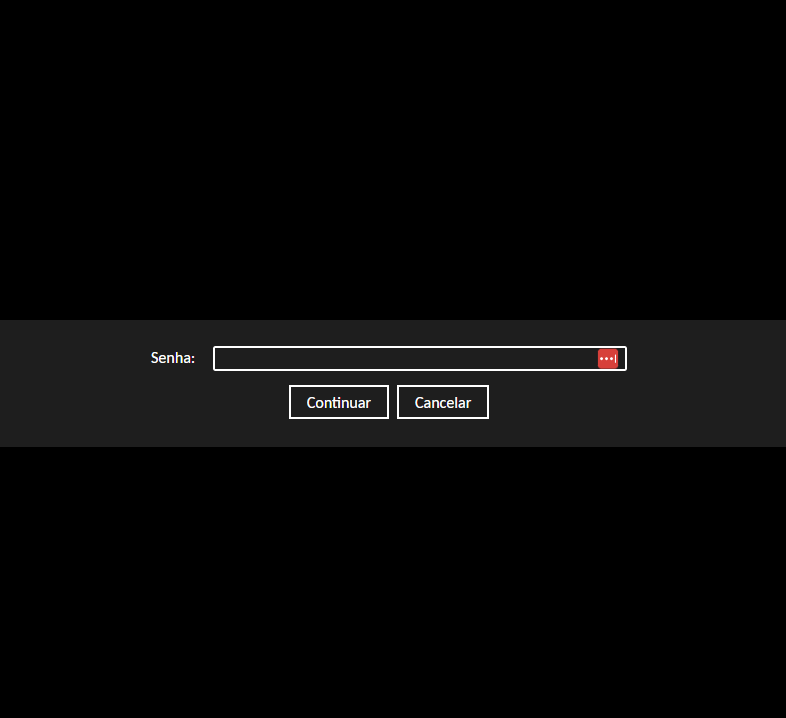
5. Enter the VPS password and click Connect.
Tip: If you change the size of your browser window, the resolution will become poor. To fix this, simply refresh the page and connect again with the new resolution.
If you have any questions about this process, please contact us via support.