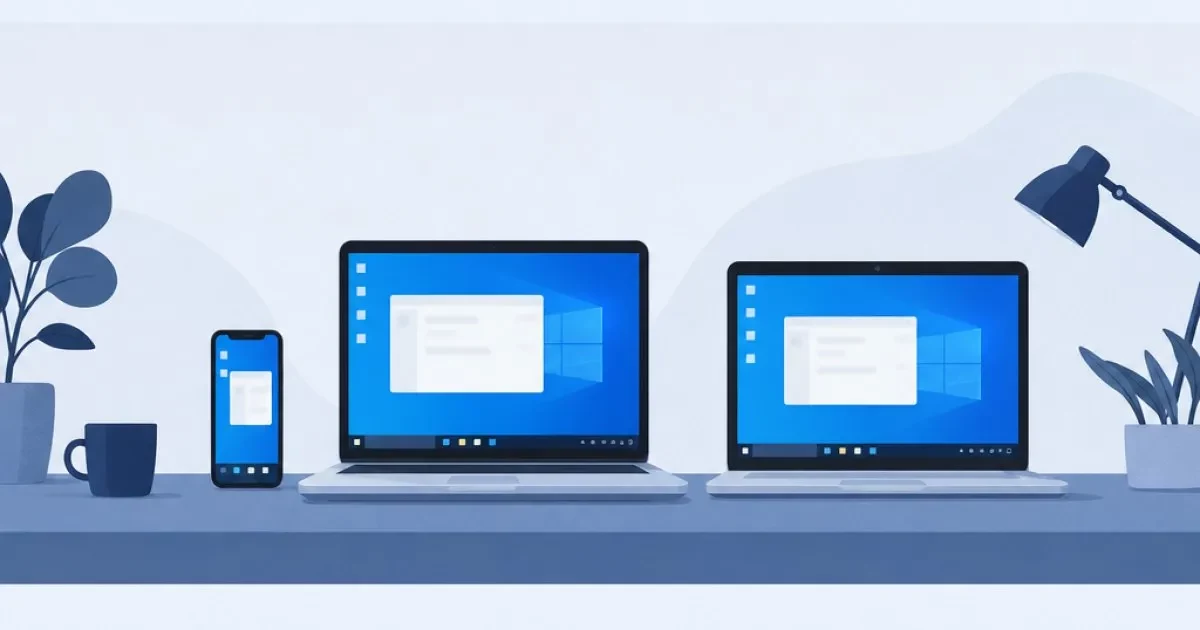
To learn how to connect to a Windows VPS, you only need three details (IP address, username and password) and a remote desktop client, which uses RDP. It comes built into Windows, and there is a free version for Mac, Android and iPhone.
In this guide, you will see step-by-step instructions for each device and a checklist for when a connection error appears. With a little organization, you can get everything ready in a short time.
How to Connect to a Windows VPS: What You Need Before You Start
Once the server is activated, you receive your access details: the IP address, the username and the password. Store all three somewhere safe. If you ordered a Windows VPS, the system can be Windows Server or Windows 10, and the access method is the same.
Before opening any program, check:
- the server shows as running in the panel;
- you have the IP address, username and password on hand, with no extra spaces;
- your internet connection is stable.
Understanding RDP in 1 Minute
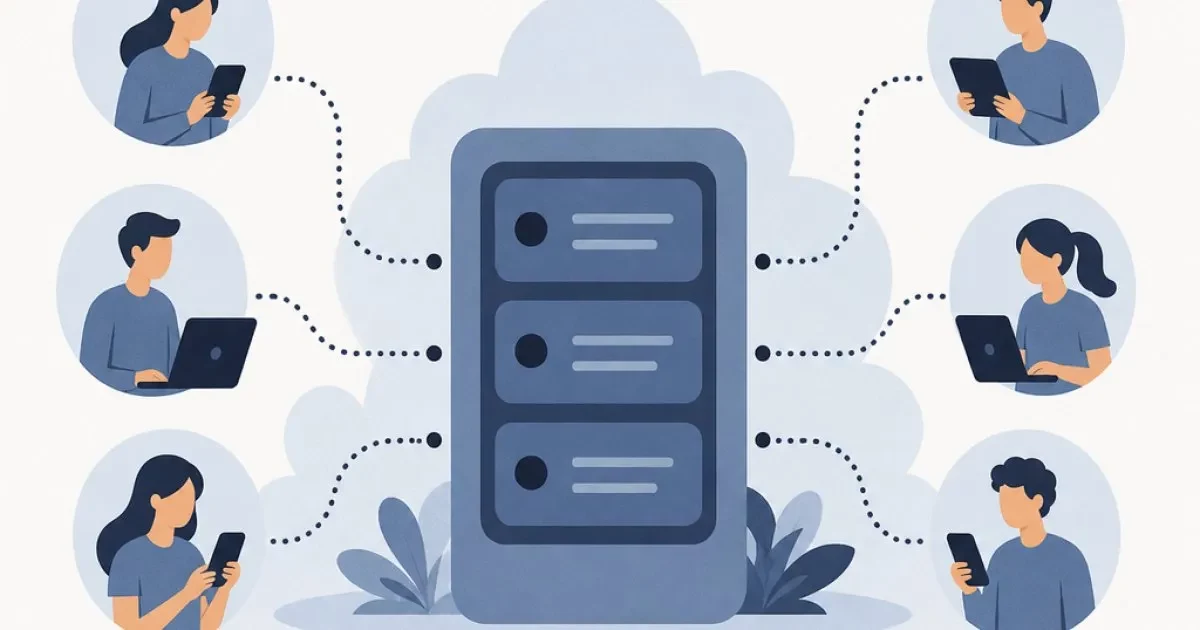
RDP stands for Remote Desktop Protocol, Microsoft's remote desktop protocol. It shows the server's desktop on your screen and sends your keyboard and mouse input to it. In practice, you control the VPS as if you were sitting in front of it.
By default, RDP usually uses port 3389. The connection goes through that port, so firewalls and networks that block it can cause errors.
How to Connect to a Windows VPS from a Windows PC
On a Windows computer, you don't need to install anything. Follow these steps:
- Press the Windows key + R, type
mstscand press Enter. You can also search for "Remote Desktop Connection" in the Start menu. - In the Computer field, type your VPS IP address.
- Click Show Options and enter the username (usually Administrator).
- Click Connect and type the password when asked.
- If a certificate warning appears, confirm that the IP address is yours and click Yes.
After a few seconds, the server's desktop opens on your screen.
Tip: Save the Connection and Adjust the Display
On the General tab, click Save As and save a .rdp file. Next time, just double-click it.
Also take advantage of the other tabs:
- Local Resources: share folders and the clipboard to copy files between your PC and the server.
- Display: choose a resolution that fits your monitor.
- Experience: if the internet connection is slow, lower the visual quality for smoother performance.
Using HostMF's Access Tool
If you prefer a shorter route, there is the download tool to access your VPS. You download the program, enter the server's IP address and start the connection. It's a good option if you don't want to change mstsc settings.
How to Connect to a Windows VPS on a Mac
To connect to a Windows VPS on a Mac, use Microsoft's free remote desktop app, available on the App Store as Windows App (formerly Microsoft Remote Desktop).
- Install the app from the App Store.
- Open it and click to add a new PC.
- In PC name, enter the VPS IP address.
- Under credentials, enter the username and password, and save.
- Double-click the connection you created and accept the certificate if prompted.
In the connection settings, you can also enable folder sharing with your Mac and adjust the resolution. The interface may change slightly depending on the app version, but the fields are the same: IP address, username and password.
RDP on Mobile: Android and iPhone
RDP on mobile works with the same Microsoft app, available on Google Play and the App Store.
- Install Microsoft's remote desktop app.
- Tap the add button and choose the connection type for a PC.
- Enter the IP address, username and password.
- Save and tap the connection to connect.
The screen is small, so a phone is not the best place for heavy work. It shines in emergencies: restarting a service, checking whether a bot is still running, or looking at a process while you're away from your desk. If you want a more comfortable everyday experience, check out the VPS with Remote Desktop and use a laptop or desktop for longer tasks.
RDP Connection Error: Checklist to Fix It
If the connection fails, don't change everything at once. Check in the order below, from the most likely cause to the least likely.
Are the IP Address, Username and Password Correct?
Most RDP connection errors start here.
- Double-check each number in the IP address.
- When copying and pasting, make sure no spaces were added before or after.
- Use the correct username, usually Administrator.
- Check whether the password was changed after the server was delivered.
- Pay attention to uppercase and lowercase letters in the password.
Server Running, Port Open and Stable Internet
- Check the panel to see if the server is running. If it's off, start it and wait a few minutes.
- Check the Windows firewall on the server: port 3389 must be open for RDP.
- Company and school networks, and some routers, block this port. Test from another network, such as your phone's 4G connection.
- Restart your router if the internet connection is unstable.
Common Messages and What They Mean
| Message | What it usually means | What to do |
|---|---|---|
| Unable to connect to the remote computer | Server off, wrong IP address or blocked port | Check the IP address, the status in the panel and port 3389 |
| Invalid credentials | Wrong username or password | Re-enter them without spaces and confirm the username |
| Timed out | Slow network or blocking along the route | Test another network and check the firewall |
| Maximum number of active sessions reached | Previous sessions were not closed | Join an existing session or restart the server |
If nothing works, the 24/7 support team in Portuguese can help you diagnose the problem. English support is also available.
Remote Access Security Best Practices
Remote access is convenient, but it requires some care:
- Replace the initial password with a long, unique one.
- Don't share credentials by message or email unless it's necessary.
- Keep Windows up to date.
- Sign out when you finish, especially on computers that belong to someone else.
- Use your phone only on trusted networks.
HostMF plans include Anti-DDoS protection at no additional cost, but it does not replace a strong password or an up-to-date system.
Use the Holiday to Get Your Server Ready
With a quieter day, it's a good time to set up your environment without rushing. Here is a suggested checklist:
- Make the first connection from your PC.
- Change the initial password.
- Run the Windows updates.
- Install the programs you plan to use.
- Save the connection (a
.rdpfile or app) on each device. - Test access from your phone, in case you need it someday.
Once everything is tested, you'll have peace of mind for the rest of the year. If you don't have a server yet, check out HostMF's Windows VPS plans. If you get stuck at any step, our 24/7 support team in Portuguese is ready to help, and English support is available too.